Patient follow-ups or recalls are a crucial part of clinical operations, coming in a variety of different workflows. Most commonly, follow-ups are used to reach out to patients either after a recent visit or after a long time has passed since the last visit.
The basic setup for automated follow-ups can be done in Outbound > Create Automatic Instance > Patient Follow-ups and is outlined in our Patient Follow-up Feature Guide.
In this blog, we're going to show you how to configure them for the two main/core functions.
How to Configure Automated Patient Follow-ups After Recent Appointments
Following up with patients after a recent appointment is one of the core methods under the patient follow-up/recall umbrella. In order to automate these through your BookedSolid account, you'll need to set up a new Patient Follow-up instance by heading to Outbound > Create Automatic Instance > Patient Follow-ups.
Once you've configured the generic information, you'll see a drop down titled Days Ago. This controls how many days after the scheduled appointment the follow-up is sent to the patient. So for checking in after recent appointments, you'll want to keep this to a minimum, ideally 1.
You'll then see another two drop downs titled Filter by Arrival Status and Future Appointments.
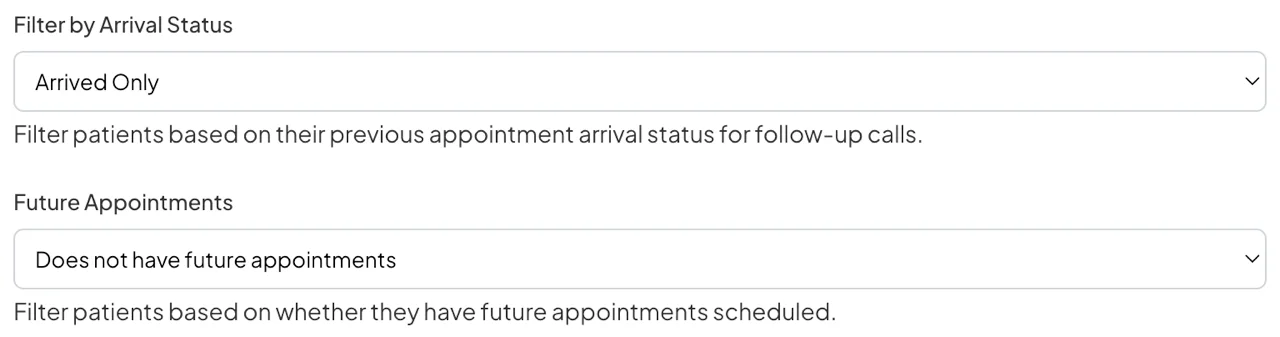
The first one controls whether the follow-up is sent to patients depending on their arrival status. It's important that you select Arrived Only here, as you don't want these particular follow-ups being sent to patients that either cancelled or failed to show up for their appointments. We recommend creating a separate instance for these patients with a different message.
The second one controls whether the follow-up is sent to patients depending on whether they have future appointments. This should be set to Does not have future appointments.
You're now all set! Subject to the appointment types selected, patients will automatically be contacted after their recent appointments in order to book another appointment.
How to Configure Automated Patient Recalls After 6 months
Following up with patients after several months since their last visit is considered one of the key methods to keeping patients in the long-term. In order to automate these through BookedSolid, you'll once again need to set up a new Patient Follow-up instance by heading to Outbound > Create Automatic Instance > Patient Follow-ups and completing the basic setup.
Once again you'll see the drop down titled Days Ago, which controls how many days after the scheduled appointment the follow-up is sent. For 6 month recalls, you'll want to set this to around 180.
For the other two drop downs titled Filter by Arrival Status and Future Appointments, you'll want to set the first one to All Patients and the second one to Does not have future appointments.
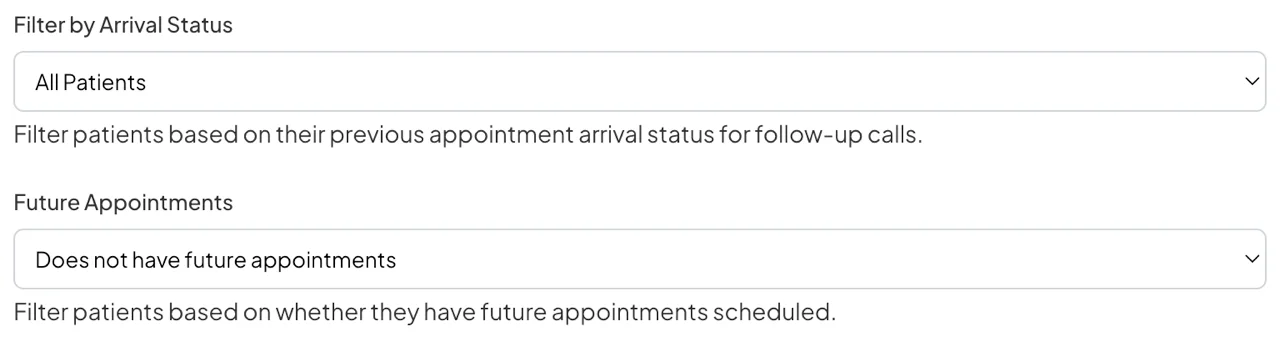
You're now all set! Subject to the appointment types selected, patients with no future appointments will automatically be contacted after 6 months since their last appointment to encourage them to book in.